
Table of Contents
When importing an XLSForm via URL, please make sure that the URL points to the XLS file directly and that it is publicly accessible. A quick way to test this is to load the URL in a browser: it should trigger the download of the file. (If it loads a page in the browser, then it’s not the right URL.)
Google Sheets #
To get the correct link for a Google Sheets spreadsheet, follow these steps:
- Click on File > Publish to the Web.
- Under the Web Page dropdown, select Microsoft Excel (.xlsx). Keep Entire Document selected in the preceding dropdown.
- Copy the link from the resulting field.
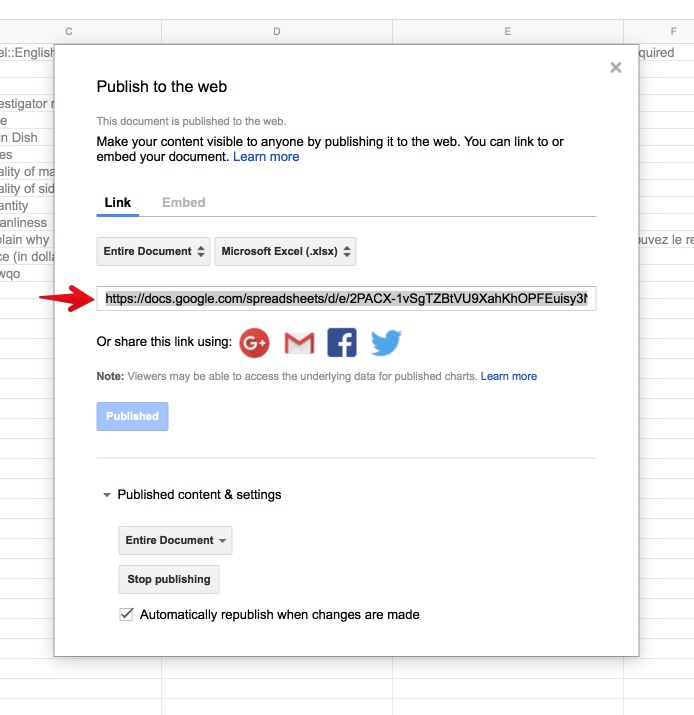
Note for advanced users: in our tests, the “Automatically republish when changes are made” checkbox doesn’t always work well. You may need to stop publishing and republish the spreadsheet to get an updated link.
Dropbox #
To get the correct link for a spreadsheet in Dropbox, follow these steps:
- Make sure the XLSForm file is in a public Dropbox folder in your account.
- Copy its link. It should end with the suffix
?dl=0. Replace the 0 with 1, so that your link ends in?dl=1.


